Smart Camera Protection and Privacy
Balancing Smart Home Security with Personal Space
For many homeowners, the decision to install a security system comes with a hesitation: “I want to be safe, but I don’t want to feel watched.” Many won’t install systems due to having having serious concerns about smart home privacy features.
It is a valid concern. We live in an age where cameras are everywhere, on our doorbells, in our living rooms, and on our street corners. While the primary goal of a smart home system is to keep intruders out, a truly intelligent system should also respect the privacy of the people inside.
Smart Home Privacy Quick Takeaways
- Look for Shutters: Choose indoor cameras with mechanical privacy shutters for visual proof that the camera is off.
- Set Boundaries: Use “Privacy Zones” in your app to black out neighbors’ windows or public streets from your outdoor camera’s view.
- Automate Privacy: Enable Geofencing rules to automatically stop recording indoor videos when your phone is home.
- Ditch the Keys: Use unique, scheduled user codes for guests and workers to control exactly when they can enter.
- Smart Placement: Focus cameras on high-traffic transit areas (hallways, doors) rather than private living spaces.
At Guardian Alarm, we believe that security should never come at the cost of your comfort. Modern smart home technology isn’t just about recording everything; it’s about giving you granular control over what is recorded, when it’s recorded, and who has access to your home.
Here is how you can use the built-in features of your smart security system to protect your privacy just as fiercely as you protect your property.
Physical Control: The Assurance of Privacy Shutters
The most effective smart home privacy tool is often the simplest one: a physical barrier.
Many modern indoor security cameras now come equipped with privacy shutters. These are mechanical covers that physically slide over the camera lens when the system is disarmed or set to “Home” mode.
Unlike a software “off” switch, which can sometimes leave you wondering if the device is truly inactive, a privacy shutter offers visual confirmation. When you walk into your living room and see the shutter closed, you know with 100% certainty that the camera cannot see you. It is a small feature that provides immense psychological peace of mind, allowing you to relax in your own home without that “always-on” feeling.
Digital Curtains: Respecting Boundaries with Privacy Zones
Outdoor cameras are essential for perimeter security, but they often capture more than just your yard. They might see into a neighbor’s window, a public sidewalk, or a shared driveway. This can lead to awkward conversations or valid privacy concerns from those living around you.
This is where Privacy Zones (often called “masking”) come into play.
Most advanced smart cameras allow you to draw digital boxes over specific areas of the camera’s view via your app. Once a Privacy Zone is set, that area is blacked out or blurred in the live feed and recordings.
- Neighborly Etiquette: Block out your neighbor’s bedroom window or pool area to ensure their privacy is respected.
- Public Areas: Mask out the public sidewalk to avoid recording every passerby, which also reduces unnecessary motion alerts.
By using Privacy Zones, you tell your camera exactly where to focus and more importantly, where not to look.
Automation: Cameras That Know When to Look Away
True smart home privacy is automated. You shouldn’t have to remember to unplug a camera every time you walk through the door.
Using Geo-Services (Geofencing), your security system can use your smartphone’s location to automatically adjust its behavior based on whether you are home or away.
- When you leave: The system detects your phone has left the “home zone.” It automatically arms the alarm and enables interior cameras to start recording if motion is detected.
- When you return: As you pull into the driveway, the system disarms and automatically pauses recording on indoor cameras.
This “Pause Recording When Disarmed” feature ensures that your private family moments (dinner conversations, movie nights, or morning routines) remain private. The cameras are ready to work when you need them (like during a break-in while you’re away) but stand down when you are safely inside.
Who Has the Keys? Managing User Access
Privacy isn’t just about cameras; it’s also about physical access. In the past, giving a neighbor or dog walker access meant handing over a physical key, one that could be copied, lost, or used at any time without your knowledge.
Smart locks and integrated security panels solve this through User Codes.
- Unique Codes: Give every family member, guest, or service provider their own unique 4-digit code.
- Scheduled Access: Restrict a dog walker’s code to work only between 11:00 AM and 2:00 PM on weekdays. If they try to enter at 8:00 PM, the code simply won’t work.
- The Audit Trail: Your system keeps a log of exactly whose code was used and when. You can receive a text alert saying “Front Door Unlocked by ‘Dog Walker’ at 12:15 PM,” giving you visibility without needing to watch a video feed.
This approach allows you to grant access without granting unrestricted access, keeping your home private and secure on your terms.
The Etiquette of Placement: Where Not to Record
Even with advanced settings, the physical placement of your cameras is the foundation of privacy.
- Avoid Private Zones: Never install cameras in bathrooms or bedrooms (unless it’s a specific nursery cam). Stick to common areas like hallways, living rooms, and kitchens.
- The “Trap” Method: Instead of covering every square inch of a room, place cameras in “trap” zones—high-traffic areas like the main hallway or the bottom of the stairs. This captures any intruder moving through the house without constantly recording where your family relaxes.
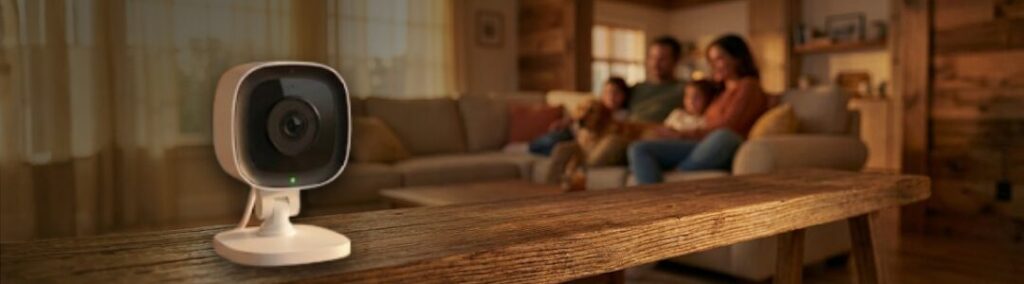
- Angle Matters: Position indoor cameras high up in corners. This provides a better field of view for security but feels less intrusive than a camera sitting at eye level on a coffee table.
Frequently Asked Questions About Smart Home Privacy
Can I set my cameras to turn off automatically when I get home?
Yes. Most modern smart security systems, including those from Guardian Alarm, support “Geo-Services.” You can create a rule that automatically pauses recording on specific indoor cameras the moment your smartphone enters your home’s geofence radius.
What is the difference between a privacy zone and a motion zone?
A motion zone tells the camera where to look for movement (e.g., “ignore the swaying tree, but watch the driveway”). A privacy zone completely blocks that area from the video feed. If you set a privacy zone over a window, that part of the video will appear as a black or gray box in both live views and recordings.
Do privacy shutters block audio recording too?
Typically, yes. On most smart indoor cameras, closing the privacy shutter (either manually or via the app) enters a “privacy mode” that disables both the video lens and the microphone. However, it is always best to check the specific settings of your device model to confirm.
Can my neighbors demand I move my cameras?
Laws vary by location, but generally, you are allowed to have security cameras on your property as long as they don’t violate a neighbor’s “reasonable expectation of privacy” (like looking directly into their bathroom or bedroom). Using “Privacy Zones” to mask out their property is a great way to resolve these concerns amicably.
If I give a contractor a code, can they come back later?
Not if you set it up correctly. You can assign “temporary” or “scheduled” user codes. For example, you can create a code that only works on a specific date or only between 9 AM and 5 PM. Once the window expires, the code is automatically disabled.
