
Setting Up Your Guardian Alarm
Account and AutoPay
Frequently Asked Questions
Managing your Guardian Alarm account is simple with MyGuardianOnline. You can view your invoices, manage payments, and set up AutoPay to handle everything automatically. This guide walks you through how to create your MyGuardianOnline account and how to enroll in AutoPay—complete with step-by-step visuals from Guardian Alarm’s official setup documents
MyGuardianOnline Registration
What is MyGuardianOnline?
MyGuardianOnline is Guardian Alarm’s secure online portal where you can:
- View and pay your bill
- Set up AutoPay
- Update account details
- Review past payments
- Manage saved payment methods
How do I sign up for the MyGuardianOnline customer portal?
First, make your way to MyGuardianOnline.com.
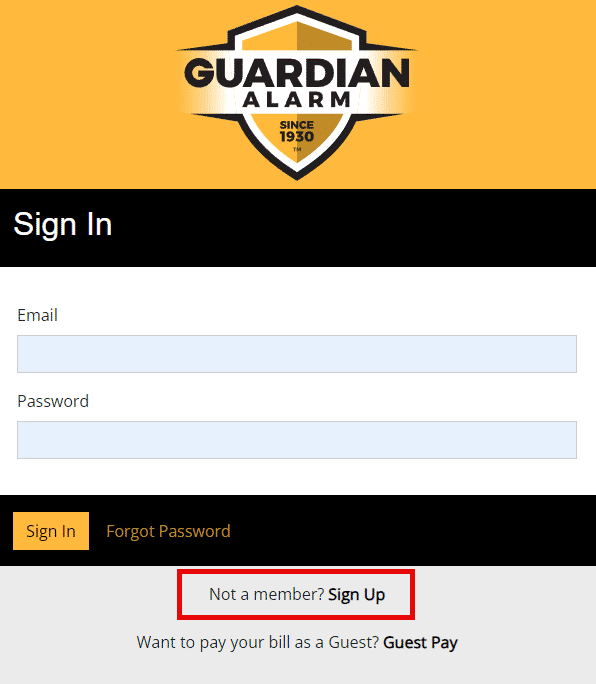
1. You will be prompted to sign up if you do not already have an account. Click the Sign Up link next to “Not a member?”
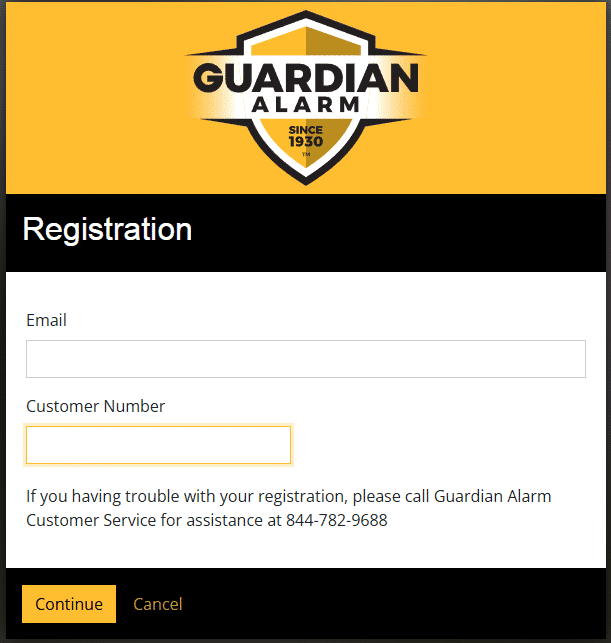
2. On the Registration screen, you will then need to enter your email address and customer number to create your account.
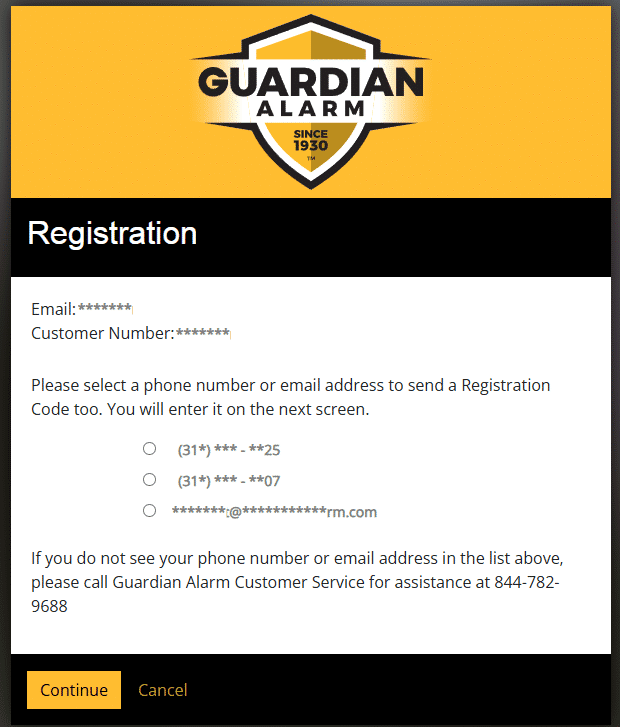
3. You will need to select how you would like to receive a Registration Code.
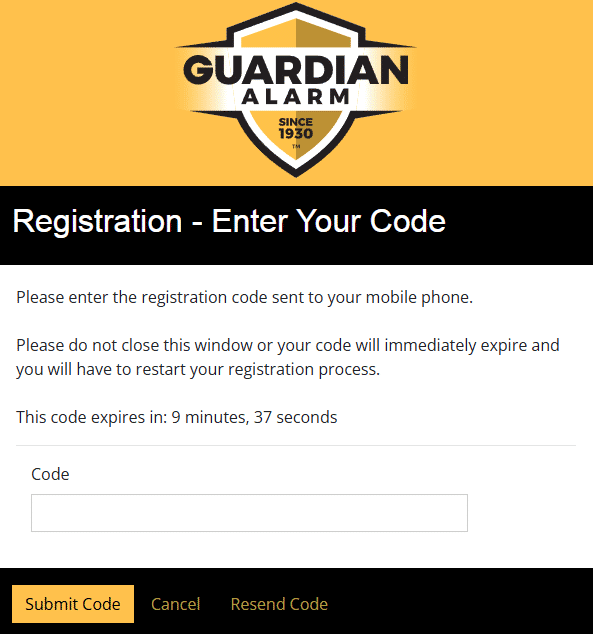
4. On the Registration – Enter Your Code screen, enter the registration code sent to you. You will have approximately 10 minutes to enter your registration code before it expires.
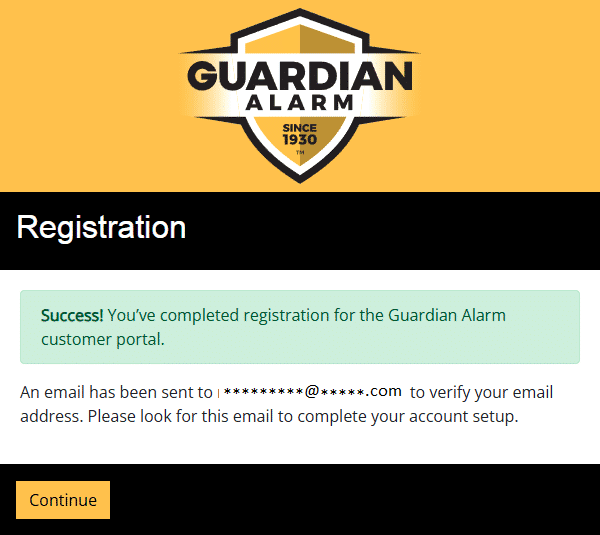
5. Once registration is complete, you will receive another email to verify your email address and create your own password.
Setting Up AutoPay
What is AutoPay?
To make payments easier, Guardian Alarm offers AutoPay at no extra cost. Once enrolled, payments are made automatically from your preferred account on your scheduled due date.
How do I enroll in AutoPay?
1. You must enroll in AutoPay at MyGuardianOnline.com. Access your account using the email and password previously created.
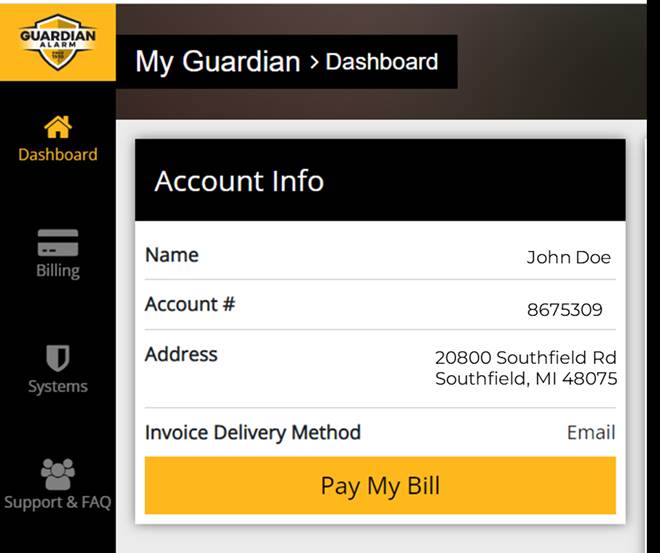
2. Once signed into your account, click Payment Center.
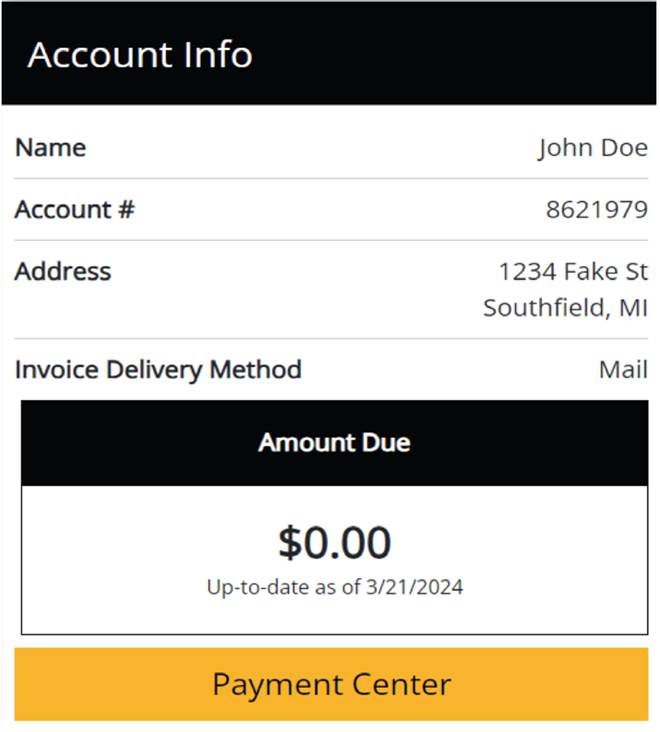
3. You will be redirected to the payment center. Then, click Manage AutoPay.
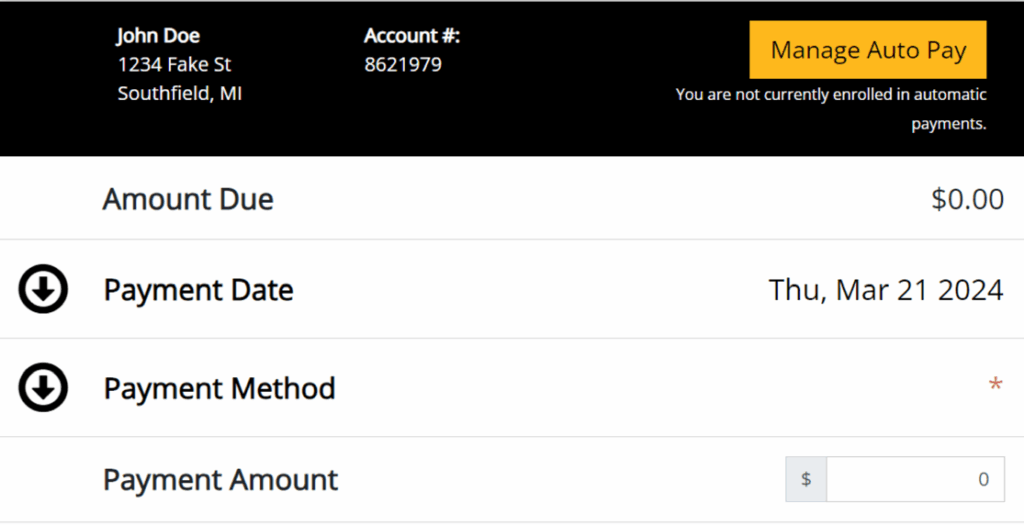
4. If you are not currently enrolled in automatic payments, you can use a saved credit card or bank account information, or click Add New Payment Method if you do not have a saved method.
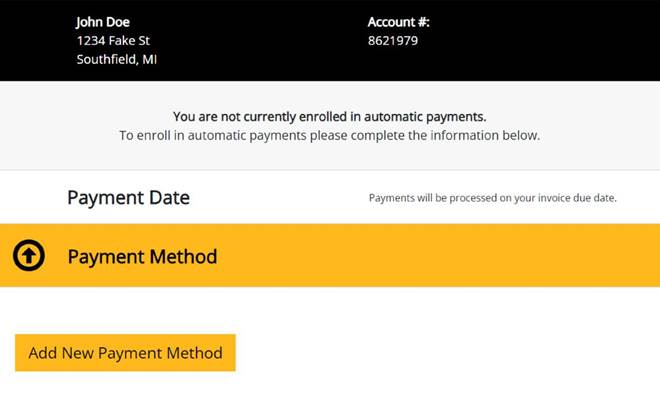
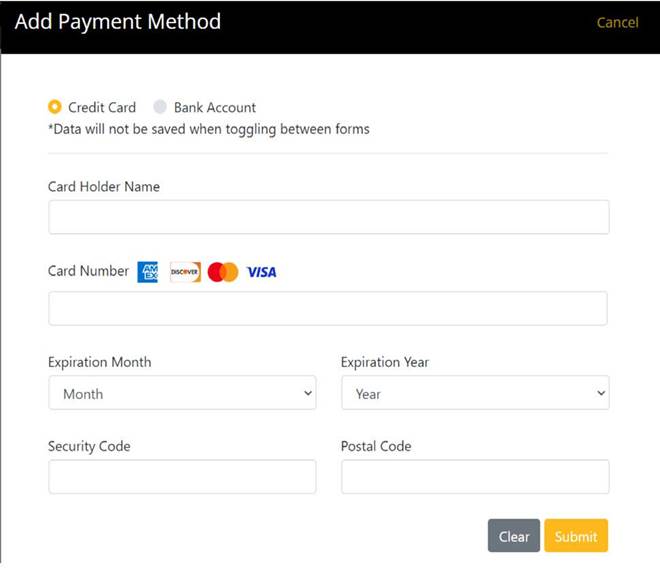
5. If you are adding a new payment method, enter in your credit card or bank account information, then click Save Payment Method. If you are using a saved method, select it and click Save Payment Method.
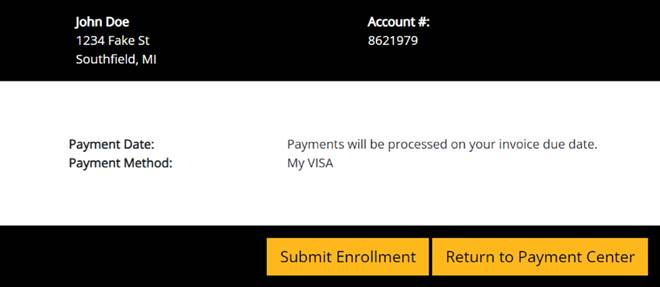
6. Once your payment method is added, check the box for authorization (I hereby authorize…) , then click Review Enrollment. Review your payment date and method. If the information is correct, click Submit Enrollment.
AutoPay and MyGuardianOnline FAQ
What information do I need to register for MyGuardianOnline?
You will need an email address and your customer number.
What should I do if I have trouble with MyGuardianOnline registration?
If you are having trouble with your registration, please call Guardian Alarm Customer Service for assistance at 800.STAY.OUT.
What information is required to set up AutoPay?
You’ll need an email address and customer number.
When will my payments be processed with AutoPay?
Payments will be processed on your invoice due date.
How can I cancel AutoPay?
You may cancel this authorization at any time by notifying Guardian Alarm.
Who should I call if I need assistance with setting up AutoPay?
If you need any assistance, give Guardian Alarm a call at 800.STAY.OUT
